
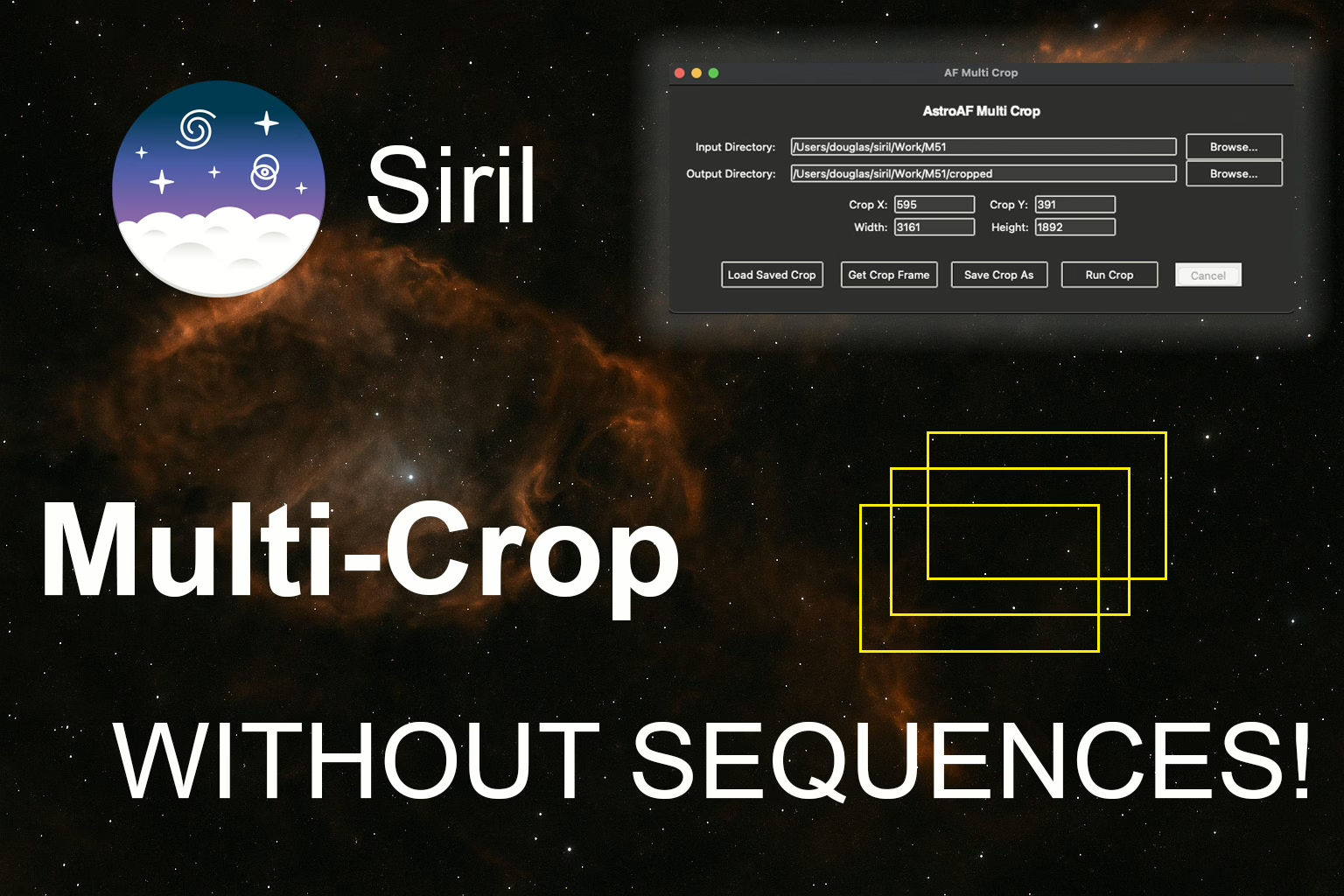
AF Multi-Crop in Siril – Batch Crop FITS Without Sequences
If you’ve ever used Siril and found yourself jumping into another application — or creating a full sequence — just to crop a set of images, you’re not alone. I’ve done it more times than I care to admit.
Siril requires sequences to use its built-in cropping tools. When you’re working with multiple calibrated FITS files — like you do with most preprocessing workflows — you hit a wall, especially when you need to bring in additional masters later in the project, such as adding narrowband masters to your already cropped LRGB images.
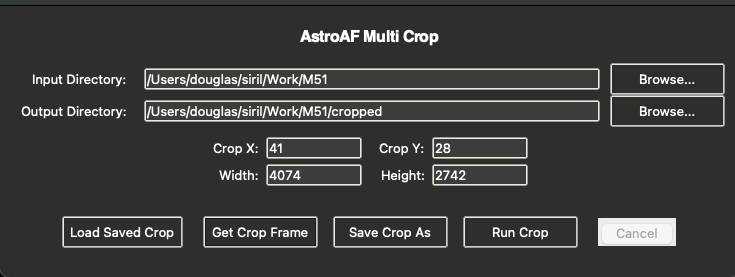
Cropping is critical before background extraction. If you leave stacking artifacts or edge noise, it throws off your background extraction and messes with every step downstream. That’s why I built this script: to multi-crop images without creating a sequence, directly from Siril’s Python layer, using a simple GUI. Then later, if I add more data, I don’t need to rebuild a sequence, I can simply pull in a saved crop file from the script and apply the same crop to new files!
Installation and Requirements
- Get the latest release of Siril, at the time of this article it is Siril version 1.0.4-beta2
- AF Multi Crop is now part of the Siril core distribution script repository.
- To install it, open Preferences > Scripts in Siril, locate
AF_Multi_Crop.pyin the list, and check its box. - The script will then appear under Scripts > Python Scripts.
- No external Python requirements — the script runs entirely within Siril’s internal Python environment.
- Just launch the script with an image already open, choose your source and target directories, set a crop frame, load the frame coordinates with the load crop button, and run the crop. Your cropped images will be saved to the target output directory!
Script Features Overview
- AF Multi-Crop allows you to load and crop FITS files (extension .fit or .fits).
- You can use the Interactive crop box placement to create your crop from a crop frame on your image and then load the frame coordinates into the script with a simple button click.
- Save and Load your custom crop settings from a file you create within the script. This can be used repeatedly to perform the exact same crop as many times as you need.
- Do you have a large image file batch you want to apply crop to the entire image set? AF Multi-Crop can batch hundreds of images in a run and do it fast, around 100 milli-seconds per image.
- You can even cancel an in-progress batch operation mid-process if you need to stop the cropping process!
Live Demo
Here’s my AF Multi-Crop video walkthrough which shows you how to:
- Open the GUI and load FITS files
- Interactively place a crop box and preview it or load crop settings from a saved custom crop file
- Save crop settings and apply them in batch mode to crop your image set.
- Review the results directly inside Siril, no need to ever leave the Siril workspace.
- Batch a large file set with ease, the workflow is the same no matter the batch image file set size.
- Cancel a batch operation mid-processing, AF Multi-Crop will finish cropping the current file and then report to you how many images were cropped and if any were skipped. Speaking os skipped files, AF Multi-Crop is smart enough to know if an image is smaller than the crop frame. if it is, it will be detected and skipped. A log to that effect will be written to the Siril console.
Conclusion
AF Multi Crop is now part of Siril’s core script set — just enable it from Preferences > Scripts, and it’ll show up under Python Scripts, ready to go.
If this saved you some hassle or helped your workflow, hit like, subscribe, and check out the companion video on YouTube. Thanks for reading, and clear skies!
Cheers!
Doug

Leave a Reply